Get to know Teams
4 minute read

What you will learn
This article will introduce you to the basic functionality of Microsoft Teams:
- What Microsoft Teams does
- Accessing Teams
- Using Teams
About Microsoft Teams
Teams is a newer application from Microsoft that is optimized for real-time, back-and-forth communication. Email is good for communicating large blocks of thought, but it lends itself to monologuing. Teams is better at capturing the dynamics of real human conversation.
You can think of Teams as having three primary modes of operation:
- Impromptu conversations
- Scheduled conversations
- Handy access to Team resources
Before we dive into installing and using Teams, take a couple minutes to watch this overview.
Accessing Teams
Like email, Teams has apps for Windows, Mac, iOS, and Android. Teams will also work from a Web browser. Unlike email, alternative clients don’t exist in any meaningful way at this point, so the Teams app is really your only option to use Teams.
Using Teams in your browser
You can use any device with a Web browser to access your email account. Simply go to https://www.office.com and click on Teams, or navigate directly to https://teams.microsoft.com.
Installing the Teams app

Android |

iOS |
|---|---|

Mac |

Windows |
- Install Teams using one of the links above.
- Enter your email address in
Sign-in addressand tapNext. - Enter your password and tap
Sign in. - If multi-factor authentication is enabled on your account, verify your identity by following the prompts.
- Grant consent in subsequent dialogs.
Using Teams
Teams has a ton of functionality out of the box. Most people use Teams for instant messaging, audio/voice calls, and screen sharing. Teams works well with hundreds of people, or just you and someone else. You can even use it by yourself if you wish.
For those familiar with non-Microsoft apps, you can think of Teams as a single app that provides the functionality of:
- Slack
- Zoom
- Meet
- Webex
- and more
Channels
Most communication happens in a channel. In the following image, you can see three teams (Board, Staff, and Public) and multiple channels in each Team.
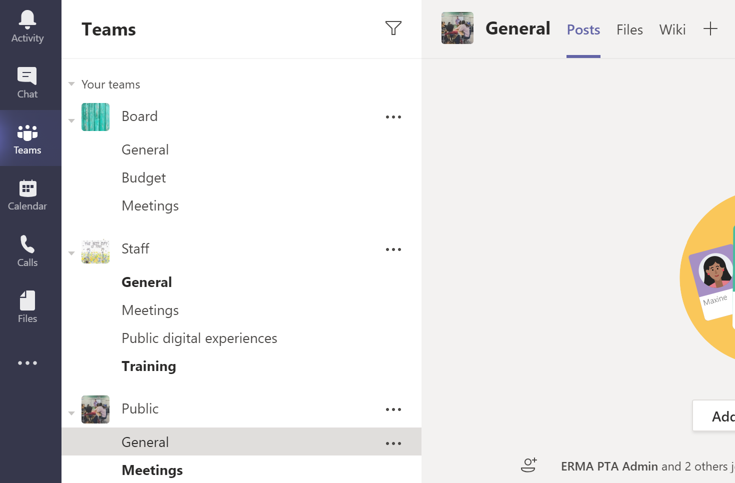
Each team starts with a General channel, and team members can add additional standard or private channels.
Each channel has multiple tabs. The first tab, called Posts, is where the instant messages appear. The second tab, called Files, holds a copy of all the files that have been used in chat, and allows team members to directly upload files.
Additional tabs and apps can be added to every channel.
For more information about teams and channels, see Teams and channels.
Meetings
Teams supports scheduled or “Meet now” meetings with anywhere from 1-300 participants. Teams also supports “live events” including streaming to public participants.
Teams meetings support audio, video, screen sharing, chat, shared whiteboard, notes, and more. In short, if there is a feature you love in Zoom or Slack, chances are extremely high that Teams already supports it or will support it in the very near future.
Teams does support calling functionality including dial out to traditional phone lines and dial in to meetings, but this is not included with the free nonprofit package, and is therefore unavailable to ERMA PTA members.
To learn more about meetings in Teams, see Meetings and calls.
Files
Teams also has rich support for sharing files, which turns out to be a tremendously beneficial feature when you consider that Teams is specifically designed to structure conversations into teams and channels. This means that finding that budget document from the board meeting a month ago is easy: just look in the Files tab of the Budget channel in the Board team.
Even better, the contents of each Files tab can be synchronized to your local drive, making offline file access and editing as easy as working with files on your desktop.
For more details about files in Teams, see Files.
Ad-hoc chats
Most of the rich communication functionality described above is also available in chats. Chats can involve 2 or more people, support instant messaging, audio/video calls, screen sharing, and file sharing.
Chats can be started at any time, even if the other participants are not currently online.
See Chat in Microsoft Teams for further details.
Apps
Teams also supports a rich app ecosystem, enabling team members to add hundreds of Microsoft and third-party apps to enhance the functionality of Teams.
Caution!
Exercise caution when considering third-party apps.See the Teams marketplace for the full list of third-party apps.
Feedback
Was this page helpful?
Glad to hear it! Please tell us how we can improve.
Sorry to hear that. Please tell us how we can improve.