Save and share documents
3 minute read

What you will learn
This article will introduce you to the basic building blocks of file organization and sharing:
- Storing files in OneDrive for Business
- Storing files in Teams
- Getting a sharing link
- Locations to avoid storing files
Preferred locations
Shared files: Teams
If the file you are working with is intended to be shared with a group, Teams is the recommended location. In particular, store the file in a team that most closely represents the audience with whom the file should be shared.
If a narrower audience is necessary, select (or create) a channel with the smaller audience and store the file there.
There are three easy ways to get files into Teams:
- Recommended Sync the files to your local computer and copy or create the file as you would normally.
- From the channel, select the
Filestab and click+ New. - From the channel, select the
Filestab and click⤒ Upload.
Once the file exists in Teams, simply click on it to view and edit.
Personal files: OneDrive for Business
If the file you are working with is “personal” in the sense that it is only relevant to you, OneDrive for Business is the recommended location.
The same options (sync, create, upload) exist for getting files into OneDrive. To sync files, you will need to install the OneDrive client and log in. To create or upload using a Web interface, log into https://office.com and click on OneDrive or visit https://ermapta-my.sharepoint.com/.
Getting a sharing link
If you share a file in Teams, all members of that channel will have edit access by default. These permissions can be further refined, but typically there is no need to do so. A file can then be shared across different teams by right-clicking the file and choosing Get link or Copy link.
If your file is in OneDrive, it’s easy to get a sharing link. A sharing link is more than just a link to the file, it actually contains permissions too. For instance, the sharing link can be view only or allow edits, and it can specify a group or set of people whom the permissions apply to. A sharing link can even be extended to external audiences, in which case it can be set to expire and a password can provide additional protection.
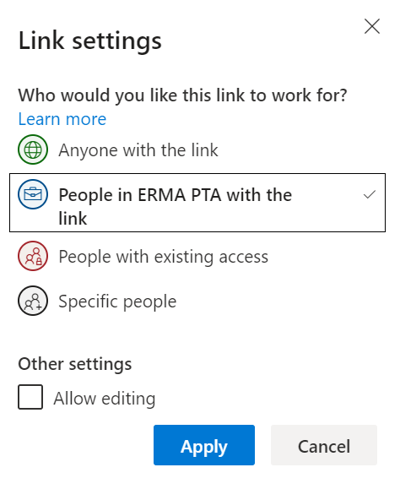
Sharing links are usually easy to obtain by right-clicking the file or looking for a Share button in the top nav bar of any Office application (other than Teams, which has the sharing mechanisms described above).
Locations to avoid
SharePoint (direct)
It is technically fine to store files in SharePoint directly. In fact, both OneDrive and Teams are storing the file in SharePoint on your behalf. The primary reason not to use SharePoint directly is that it is sometimes more challenging to find the file you’re looking for.
Personal computer
Every effort should be made to avoid storing files long-term on your personal computer with one major exception: file sync is fine and recommended.
The reasons not to store files on your local computer primarily have to do with accessibility (nobody else can access it) and vulnerability (if your computer fails, the file is gone).
Feedback
Was this page helpful?
Glad to hear it! Please tell us how we can improve.
Sorry to hear that. Please tell us how we can improve.